
What is it for?
This feature allows you to do calculations with multiple variables as you would do it using a spreadsheet. You will able to save these formulas and use the variables created as a result on the map as layers. Find Formulas in Explorer and Territory Manager.
Create Formulas with Explorer
NOTE: Formula works basically the same way in Explorer as it does in Territory Manager. The main difference is that in Territory Manager you will be able to select other types of areas, for example, 5 minutes walking distance instead of just administrative level areas.
To create your first formula:
- Store Network → Explorer → Add Variable → Formula → Build First Formula
Once inside Formula, you will see the next screen (we have included numbers to make it easy to follow this guide):
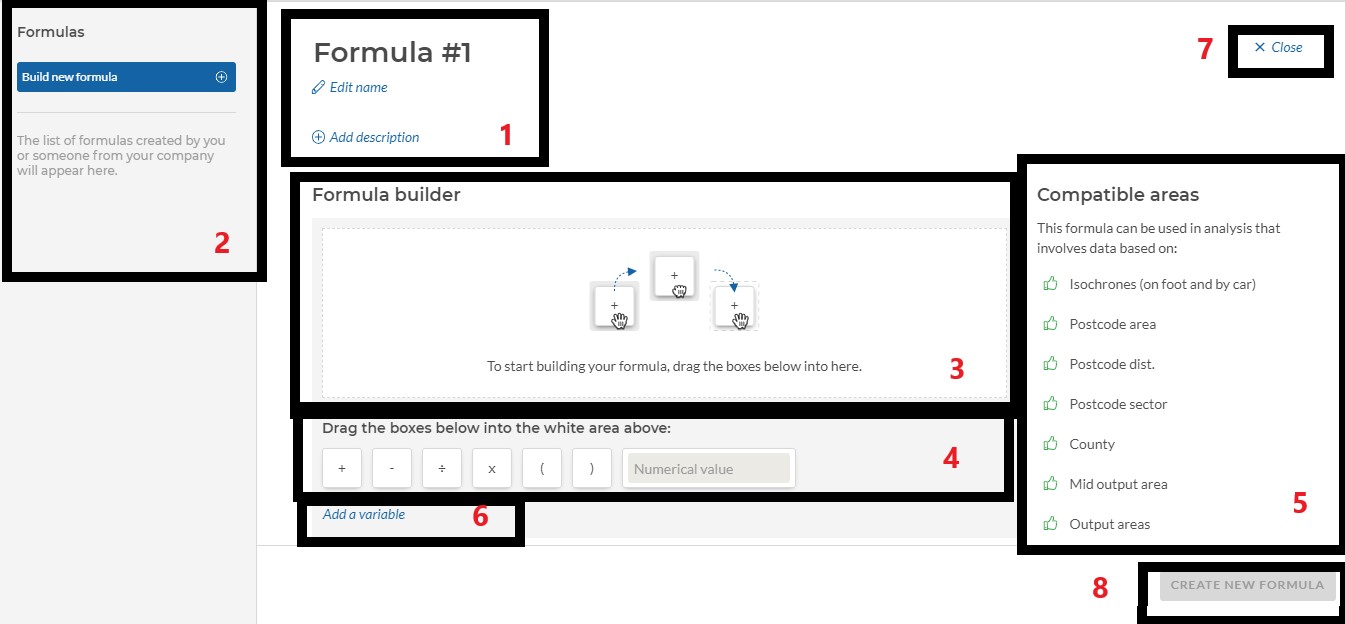

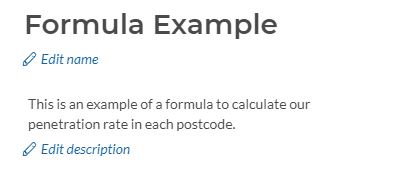
1 - Edit the formula's name and add a description (optional)
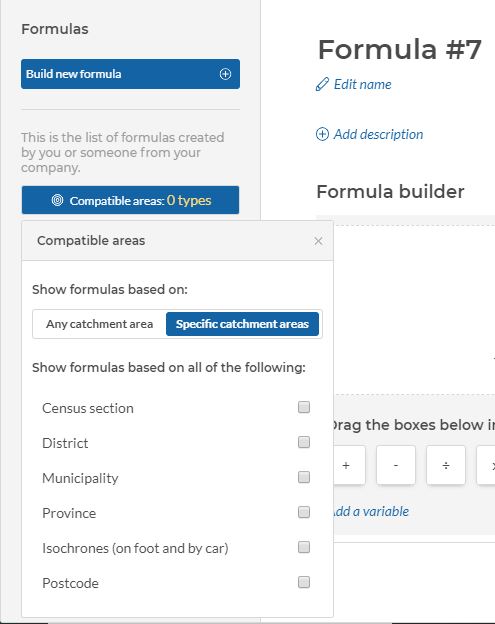
2 - List of formulas already created by other Geoblink users from your brand
NOTE: Click on Compatible Areas if you want to search just for saved formulas compatible with specific area types. For example, search only for saved formulas that include variables compatible with postcodes. More about this in section number 5.
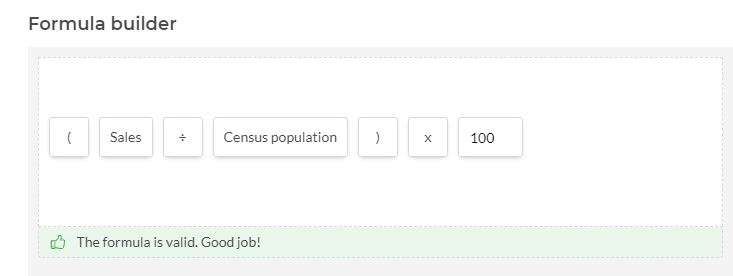
3 - Formula builder
In this window, you will be able to see and edit the formula. Drag the boxes here to create it. Once they are here, hover the mouse on them to change their position or delete them.
4 - Boxes
Drag these boxes to the Formula Builder window to create your formulas. In Numerical Value, you can add any number. For example, add 100 to multiply the formula by 100 and obtain a percentage. NOTE: Before adding the number, first drag the numerical value box to the Formula Builder window.

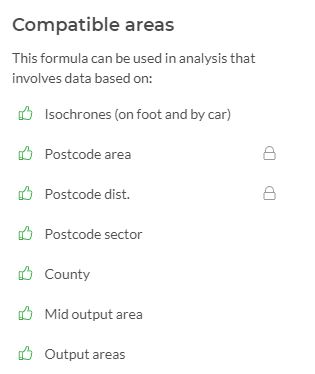
5 - Compatible Areas
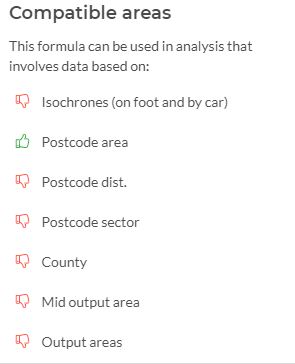
Here you can block the variables that are not available for the type of formula you are building. For example, our sales layer was uploaded by Postcode area so we can block the rest of the options clicking on the want you want to use (in the image below we can use variables compatible with Postcode Area and Postcode District).
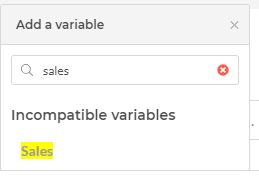
NOTE: If you add the variable to the formula without blocking any option. the app will automatically detect which variable you won't be able to use although they will be still available under the Add Variable option.
6 - Add variables
Here you can add all the variables you want to use in the formula.
NOTE: If you have uploaded your own layers, they will be available here.

7 - Close the window to go back to the main page.
8 - Create the formula
9 - Select the type of variable and unit.
Our example: (Sales / Population) * 100 = X %

Comments
0 comments
Please sign in to leave a comment.